Caso de uso
AI wall paint color preview: your room, three shades and cost
Preview wall paint colors in your own room photo with Seedream Pro from $0.042 per image, using paint-only prompts and checks before buying real samples.
To preview wall paint colors with AI, upload your room photo to Seedream 5.0 Pro and ask for one paint-only change: a 1K image with one reference has a listed cost of $0.042 through API Stock, as of 14 October 2026. Three separate color attempts total $0.126 at that rate, before revisions. Use the images to shortlist a color direction, then check physical paint samples in the room.
What should an AI paint preview help you decide?
The useful question is narrow: would a warmer, greener or earthier wall work with the things you already own? You want to compare the paint beside your floor, sofa and curtains. A beautiful image of a different room does not answer that question, even if the new wall looks convincing.
Choose a single surface before generating. For a living room, that might be the wall behind the sofa; for a bedroom, the wall behind the bed. Keep the ceiling, trim and other walls outside the brief unless you actually intend to paint them too. Describing the target by its position is clearer than asking to “make the room sage.”
The download is a visual concept. It does not measure the wall, calculate paint coverage or tell you how a finish will behave on your surface. It also cannot establish an exact match to a manufacturer's shade. If your only task is selecting from one paint brand's existing palette, that brand's dedicated visualizer may be a better first tool. AI editing is useful when you want to describe a color direction in ordinary words and see it in the context of your own photograph.
Why start with Seedream Pro, and when is a cheaper model enough?
Seedream Pro fits this workflow because today's catalog supports editing from a reference image, common landscape and portrait proportions, and 1K or 2K output. Start at 1K with one room photo. The first reference is included in the generation tariff, so a paint-only comparison does not need an extra image charge.
That is a capability-based recommendation, not evidence that Seedream preserves every window or outperforms other models on interiors. The word “Pro” does not guarantee a faithful edit. Your first output should establish whether it handles your particular room well enough to continue.
Nano Banana 2.1 is a cheaper alternative to test: the current catalog lists $0.014 per image at 1K, 2K and 4K, with reference editing available. If your main priority is inexpensive color exploration, try the same brief there. Compare unchanged fixtures before judging the wall; a lower generation price does not prove lower cost per usable preview if you need more attempts.
For this post's main recipe, use Seedream Pro so the settings and budget stay consistent. The image-editing guide covers other reference-based tasks when you later want to replace an object or assemble a more ambitious room concept.
What room photo should you upload?
Take a clear photograph from a position that shows the target wall and its relationship to the furniture. Include the wall's corners, the ceiling junction and the floor edge. Those boundaries give you something concrete to inspect after the edit. A radiator, doorway or window on the wall is also useful as a preservation check.
Use a photograph whose lighting you actually want to compare. Avoid a strong filter, a heavily brightened listing photo or an image in which the target wall is almost entirely hidden. Move temporary clutter out of the way before taking the source; asking the model to remove clutter and repaint at once makes the comparison harder to judge.
Upload one source and keep an untouched copy. Use that same original for each color attempt, rather than feeding the first generated room into the next request. Otherwise a changed window in version one can become the reference window in version two. Consistent input makes unwanted drift easier to spot; it does not prevent drift altogether.
Match the output proportions to the source. For example, choose 4:3 for a 4:3 room photograph, rather than forcing it into a square. Keep the source, your prompt and the selected settings together so you can repeat the comparison later.
What prompt changes only the wall paint?
Open the Seedream Pro playground, upload the room photograph and choose 1K. For a living room with a radiator beneath its window, paste this brief, adjusting the target wall to match your actual photograph:
Edit this room photograph. Change only the painted wall behind the sofa to a warm off-white with a subtle creamy undertone and a matte painted finish. Keep the wall boundaries, camera position, perspective and existing daylight unchanged. Preserve the sofa, floor, curtains, window, radiator, skirting boards, ceiling and all other walls exactly as shown. Retain the existing shadows and visible wall texture. Do not add furniture, plants, decorations, text or a logo.
The intended result is your room with a different wall color. This is a starting prompt, not a claim that we have tested the output on your photo. Instructions to preserve the room guide the edit; they do not lock those pixels or turn the request into a masked paint operation.
If the model recolors the ceiling or changes the sofa, return to the original photo and make the target more precise. Replace “wall behind the sofa” with “the wall between the left corner and the window frame,” if that describes the scene better. Fix the particular mistake instead of adding a long list of style adjectives.
How do you compare three shades without redesigning the room?
Keep the entire prompt above and change only its color phrase. These three directions give you a useful contrast without requesting new furniture or a different lighting setup:
| Version | Color phrase | Compare |
|---|---|---|
| Warm neutral | Warm off-white with a subtle creamy undertone | Does it sit comfortably beside the existing floor and trim? |
| Soft green | Muted sage green with a restrained grey undertone | Do you like the wall beside the sofa and curtains? |
| Earthy neutral | Pale clay beige with a soft pink-brown undertone | Does the warmer direction suit the existing furnishings? |
These are descriptive directions, not paint product names or calibrated
color specifications. Generate each as its own request with the original
room photograph. Save the outputs with simple filenames such as
room-off-white, room-sage and room-clay; add your comparison labels
in an editor rather than asking for text inside the room image.
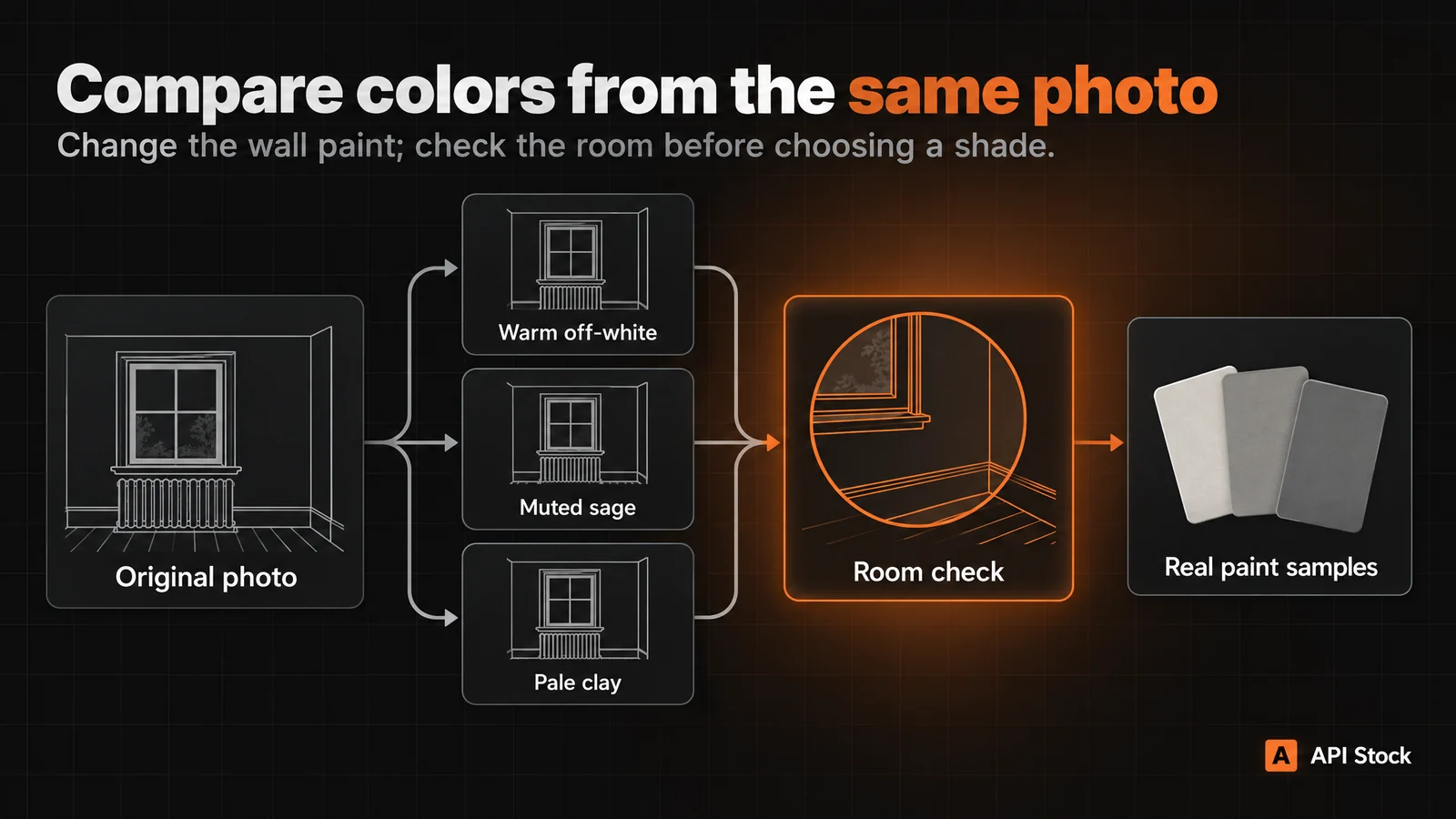
View the source and the three outputs together. First discard any version that materially changes the room. Then compare the wall directions in those that remain. If all three distort the fixtures, stop and revise the source or brief before buying more attempts. A manual photo editor may be more suitable when you need a tightly controlled wall selection.
What should you check before choosing a favorite?
Inspect the window frame, radiator, ceiling line and skirting boards first. Look for paint spilling onto them, missing radiator sections, a shifted corner or a changed floor pattern. Then compare the sofa and curtains. If their colors or shapes changed, the wall is no longer being judged against the same surroundings.
Check the light as well. A much brighter window or deeper shadow can make a shade feel different without the paint being the only change. Reject a version whose apparent improvement comes from newly invented sunshine. Asking for unchanged daylight is useful, but the result still needs that comparison.
A small local error does not always require another generation. If you can restore the original trim cleanly in your photo editor, do so. If the room's geometry has changed throughout the image, a simple touch-up will not make it a reliable comparison. Keep the distinction between a quick concept for discussion and a carefully prepared presentation image.
How much should you budget for previews and revisions?
Listed USD catalog prices checked on 14 October 2026. These rates are per generated image, not per approved paint choice. Review the playground's request estimate and current pricing before running each attempt.
| Request | Listed USD cost |
|---|---|
| 1K, one room photograph | $0.042 |
| 1K, room photograph plus one separate color reference | $0.046 |
| 2K, one room photograph | $0.084 |
Each reference after the first adds $0.004. Describing sage in your prompt does not add a reference; uploading a separate swatch photograph does. A swatch may guide a color direction, but it still does not certify a match to physical paint.
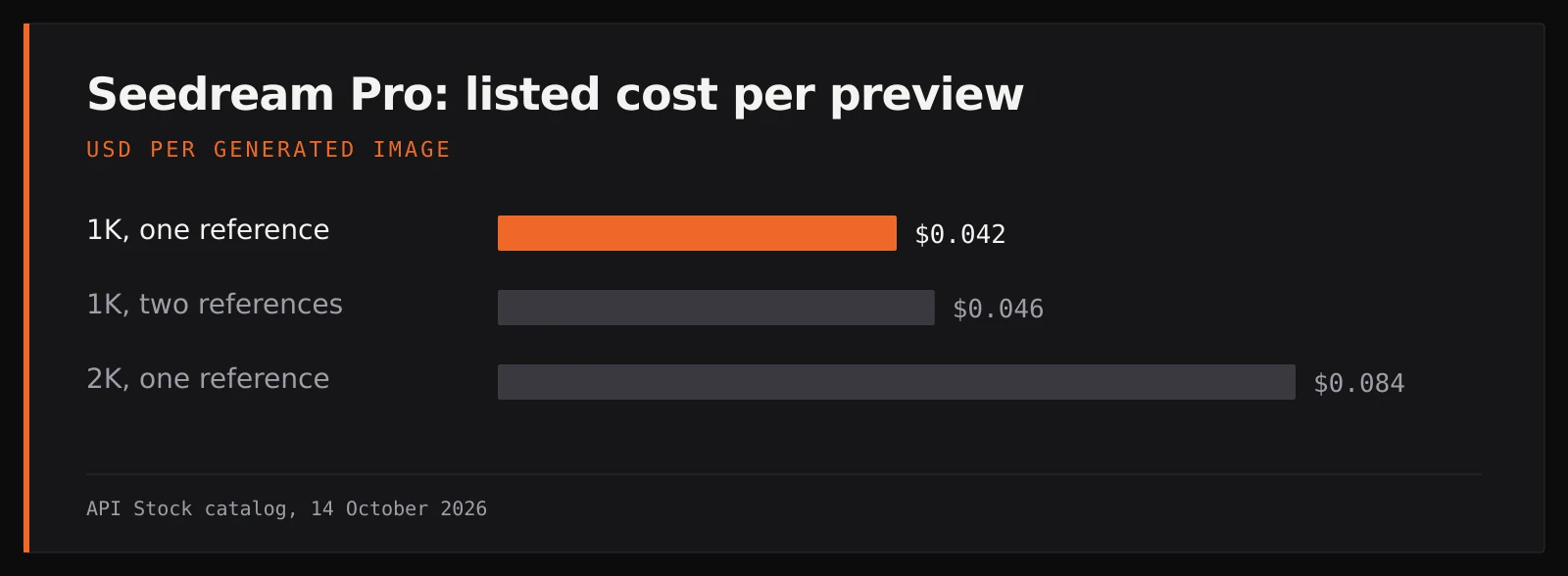
For an example budget, three 1K color attempts with one reference each are 3 × $0.042 = $0.126. Two additional 1K revisions bring that listed-rate total to $0.210. One further 2K generation adds $0.084, for $0.294 overall. This is arithmetic for six separate requests, not a prediction that six images will deliver a usable result.
A successful generation you dislike still costs money. Moving to 2K starts another generation and can change the room again; it is not a free enlargement of your selected 1K file. Stay at the lower tier while choosing a direction, and request more pixels only when you have a specific use for them. Seedream Pro currently offers up to 2K here.
Can the preview replace a real paint sample?
Use it to choose which directions deserve a physical test. A generated image and your display cannot guarantee the appearance of a named paint on your wall. Even Sherwin-Williams' own color visualizer advises checking a physical color chip, card or painted sample before purchase because the screen representation can differ from the actual color.
Once you have a shortlist, compare real samples beside the existing furniture in the room's actual light. Keep the approved preview as a conversation aid for your household or decorator, and keep the real product name separately. Avoid handing someone an AI image as the sole instruction for buying paint.
What is the next step for your first paint preview?
Open the Seedream Pro playground, sign in and fund your balance. Upload one room photograph, select 1K and the matching proportions, paste the warm off-white prompt and check the estimate before generating one image. First verify the fixtures; if they are intact, make the sage and clay attempts from the original.
You can complete this comparison without writing code. If you later build the same workflow into a decorating tool, the image-model documentation explains the reference fields. For today's decision, one faithful room preview is a better starting point than a gallery of unrelated interiors.
FAQ
Can I preview a wall paint color from my own photo?
Yes. Upload the photograph as a reference in the Seedream Pro playground and describe a paint-only change. Check that the model preserved the room before using the image to compare color directions.
How much do three color previews cost?
At the listed 14 October 2026 rate, three separate Seedream Pro 1K requests with one room reference each total $0.126 before revisions. Review the live request estimate; you pay for generated attempts, including successful images you discard.
Will the AI preserve my furniture and windows exactly?
Exact preservation is not guaranteed. Name the fixtures in your prompt and compare them against the original; return to that original for every new color attempt rather than chaining edits.
Can I ask for a specific paint brand's shade?
You can describe the shade or provide a reference, but the result is not a verified paint match. A manufacturer's visualizer and physical samples are better tools for confirming a particular product before purchase.
Should I start at 1K or 2K?
Start at 1K to judge the wall direction and preservation of the room. Choose 2K only if you need a larger presentation image, then inspect the new generation again because it may differ from the draft.
- interiors
- image
- editing
Pruébalo con tu propia clave
Todos los modelos mencionados están disponibles en el catálogo de API Stock: una clave API, un saldo prepago y conmutación automática entre proveedores.
Sigue leyendo
 Caso de usoAI avatar from a photo: prompts, likeness checks and costMake a square AI avatar from your photo with Seedream Pro, starting at $0.042 per image; use portrait prompts and check likeness before the circular crop.·9 min de lectura
 Caso de usoAI product photos for an online store: models, prompts, costHow to turn one phone photo into a full set of product images with AI — which model to use for each shot, prompts that work, and the cost per photo.·9 min de lectura
 Caso de usoAI agent: turn a brief into text and imagesUse the new agent to turn a brief and reference files into text and images, choose models, set a spending limit and keep results in projects.·7 min de lectura