Use case
AI images for presentations: prompts and cost per slide
Create wide slide illustrations with Seedream 5.0 Pro from $0.042 per image, keep text editable, and budget for revisions with practical prompts.
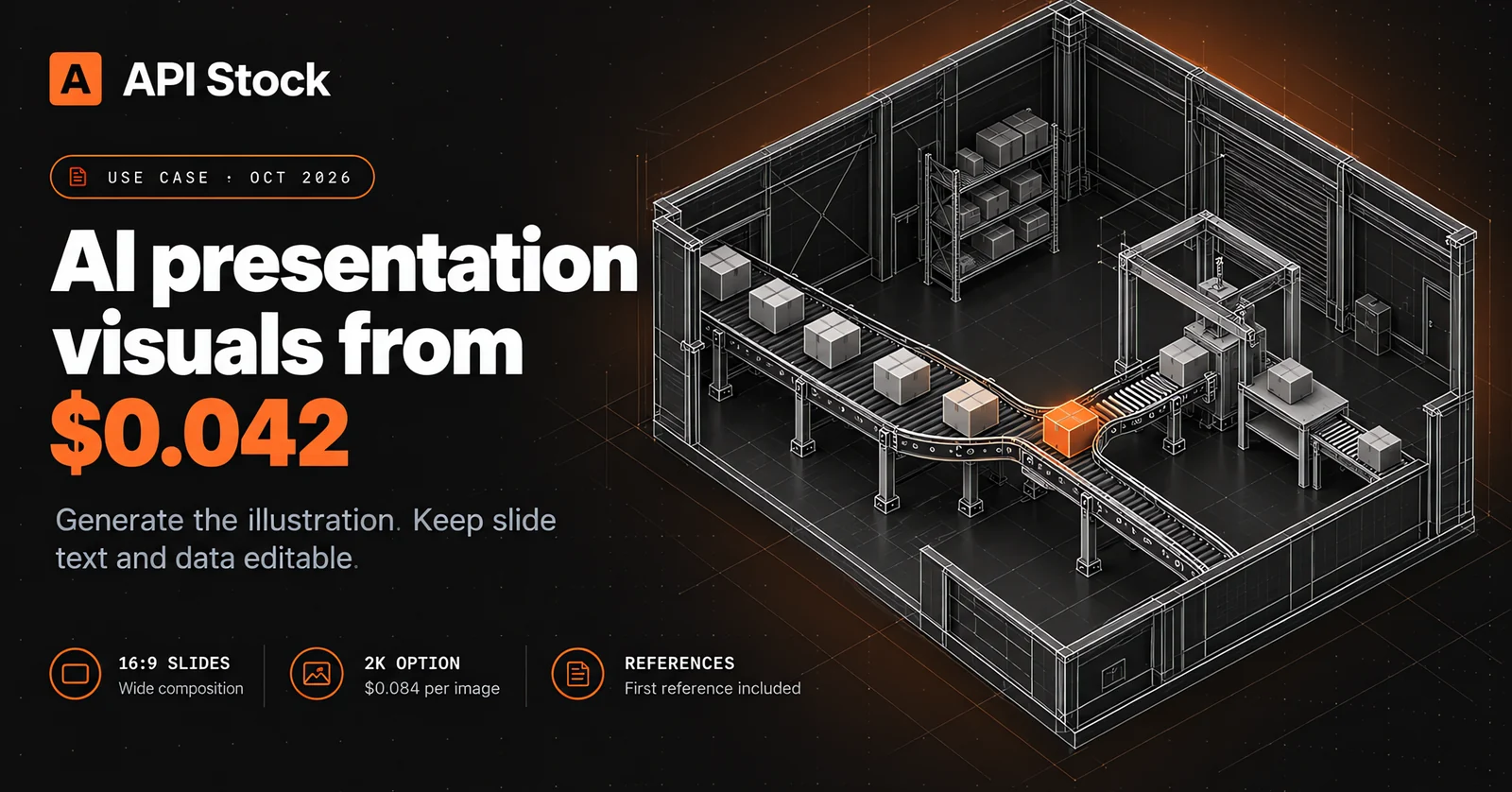
Use Seedream 5.0 Pro to make a wide illustration for a presentation, then add your title, labels and charts in your slide editor. Through API Stock, a text-only generation costs $0.042 at 1K or $0.084 at 2K, as of 6 October 2026. Start with one 16:9 image that explains one point; the output is an image asset, not an editable PowerPoint deck.
What should you ask AI to draw for a presentation?
Give the image a job before giving it a style. “A professional business presentation” could produce almost anything. “A warehouse conveyor that narrows at the packing station, with empty space on the left for my title” tells the model what the audience needs to understand and where the picture belongs.
This workflow suits a founder explaining a process, a trainer introducing a concept, or a marketer making a visual opening slide. You already have the claim; you need a picture that helps someone see it. A bottleneck, a changing landscape or a close-up of a material can do that without a wall of bullet points.
Keep evidence separate. Sales figures, customer quotes, screenshots of a real product and a technical diagram with exact connections should come from your own sources. An attractive generated chart can still have the wrong bar lengths or invented labels. Build charts from verified data in your editor and use AI for the surrounding illustration.
For a concrete first task, imagine a logistics presentation with the title “Packing is the bottleneck.” The generated asset is a warehouse cutaway. Your editable title supplies the conclusion. You can change the claim later without paying to redraw text baked into a picture.
Which model and settings fit a slide illustration?
Start with Seedream 5.0 Pro’s playground. Today's catalog supports generation from text and reference-image editing, a 16:9 aspect ratio, 1K and 2K resolution tiers, and JPEG or PNG output. Choose 16:9 for a wide deck and 1K for your first composition check.
The reason to try Pro here is its focus on visual composition and editing. In its Seedream Pro announcement, ByteDance describes work on structured visual communication and layout. That is a reason to test the model on a slide illustration, rather than evidence that it will get every relationship right.
For a large illustration you plan to keep, consider 2K after the composition works. Resolution adds room for detail; it does not fix a confusing scene. Inspect the file at the size it will occupy on your slide before choosing a higher tier.
You also do not need a generated image on every slide. Use an existing licensed photograph when it already says what you need. Use your real screenshot for a product walkthrough. Use native shapes when the point is an exact sequence of steps. The image-generation guide helps with other image tasks, but this post's starting point is one explanatory picture.
What prompt can you paste into the playground first?
Select 16:9, 1K, and PNG, leave reference images empty, then paste this prompt:
Create a wide editorial illustration for a logistics presentation. On the right half, show an isometric cutaway of a small warehouse: parcels travel along a conveyor toward a narrow packing station, where a short queue has formed. Highlight the parcel at the narrow point in warm orange; keep the warehouse and other parcels in charcoal and pale grey. Use clean geometry and soft shadows on an off-white background. Leave the left half empty and quiet for an editable slide title. No people, words, numbers, logos, charts or decorative icons. The illustration should explain a bottleneck at a glance.
The requested outcome is a visual metaphor for a queue, with a clear place for your title. Check that the conveyor actually leads into the packing station and that the highlighted parcel sits at the restriction. If those relationships are wrong, reject the image even if the lighting looks good.
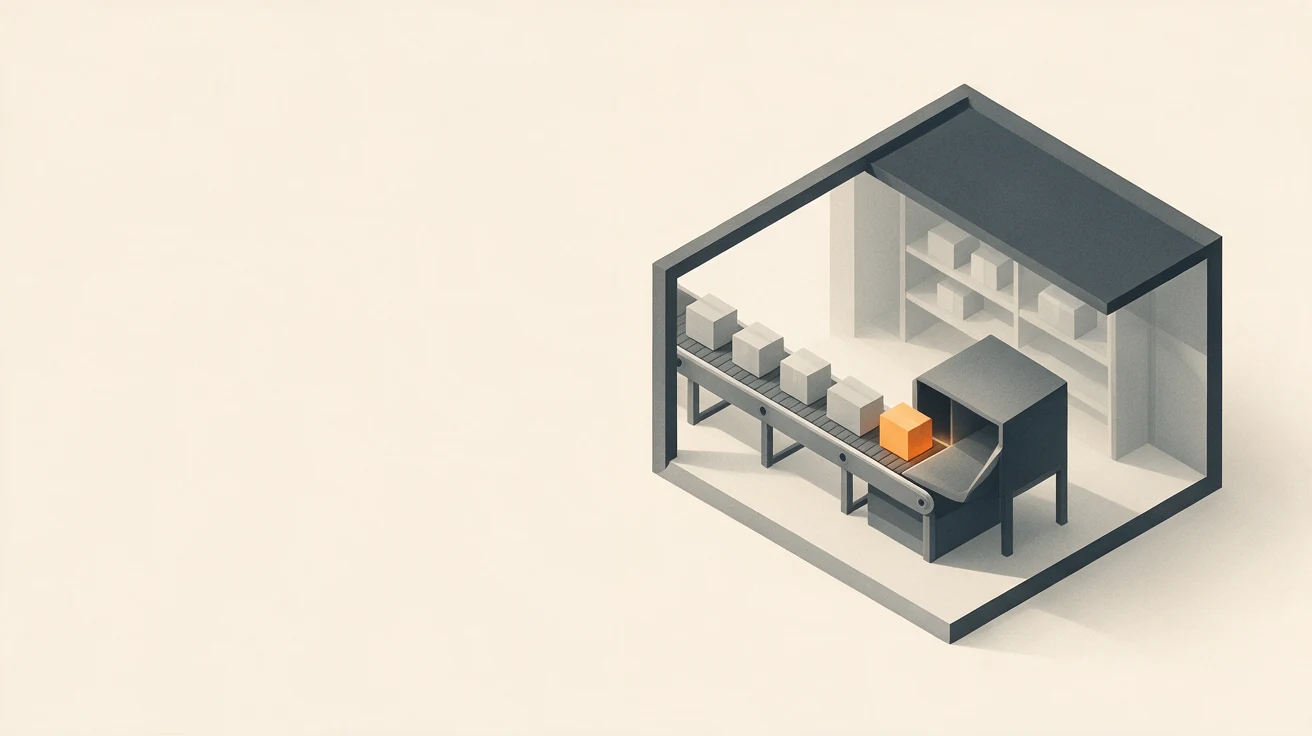
This example was generated from the prompt above on 6 October 2026. It leaves a broad title area and makes the queued parcels visible; the packing station is simplified into a machine-like enclosure, so it should remain a conceptual illustration rather than a diagram of real equipment.
Download the result, insert it into a wide slide and add “Packing is the bottleneck” as native text. Add a small source note only if you are also presenting measured evidence. The generated warehouse represents the concept; it is not a photograph of your operation.
Change one thing on your next attempt. If the queue is hard to see, ask for a simpler warehouse with fewer surrounding objects. If the title area is crowded, ask for the warehouse to occupy only the rightmost part. Changing subject, style, palette and layout together makes it harder to learn which instruction helped.
How do you make a small set of visuals feel consistent?
Use the same short style brief across the set: wide composition, off-white ground, charcoal objects, one warm-orange accent, clean geometry, soft shadows and no embedded text. Keep it at the end of each prompt. Then change the scene to match the next slide's point.
For an introductory slide about moving from a pilot to a larger operation:
Create a wide editorial illustration of a small greenhouse opening into a much larger growing area. Keep the young plants and greenhouse structure on the right half, with a clear path leading from the small area into the larger one. Use an off-white background, charcoal structure, pale-grey plants and one warm-orange path. Clean geometry and soft shadows. Leave the left half empty for a title. No people, text, numbers, logos or charts. This is a conceptual illustration of expanding a pilot, not a realistic facility photograph.
For a training slide about checking a component before assembly:
Create a wide editorial illustration showing an unbranded mechanical gear separated from a simple assembly, ready for inspection. Place the assembly on the right half, make the detached gear the single warm-orange accent, and leave the left half empty for the title. Off-white background, charcoal and pale-grey parts, clean geometry, soft shadows. No words, numbers, logos, arrows or people. Keep the scene simple enough to understand at presentation size; do not attempt an engineering drawing.
These prompts share a visual vocabulary without using the same stock object on every slide. They describe intended results; expect to review and revise them for your deck.
If text alone does not hold the look, try an approved reference image. Ask the model to preserve its palette, lighting and illustration style while changing the scene. The image-editing guide explains reference-based changes. A reference can guide the result, but it does not lock the exact design. The first reference is included in the resolution price; additional references add to it.
What stays editable after you generate the image?
The picture is a flattened image. Its objects, baked-in words and background do not become separate PowerPoint or Google Slides elements. PNG output does not by itself promise a transparent background or editable layers.
Keep the slide title, supporting sentence, chart, callout labels and source notes in your presentation editor. If you need a labelled process diagram, generate a background illustration only when it helps, then draw the arrows and labels as native objects. You can correct a connection immediately instead of generating another approximation.
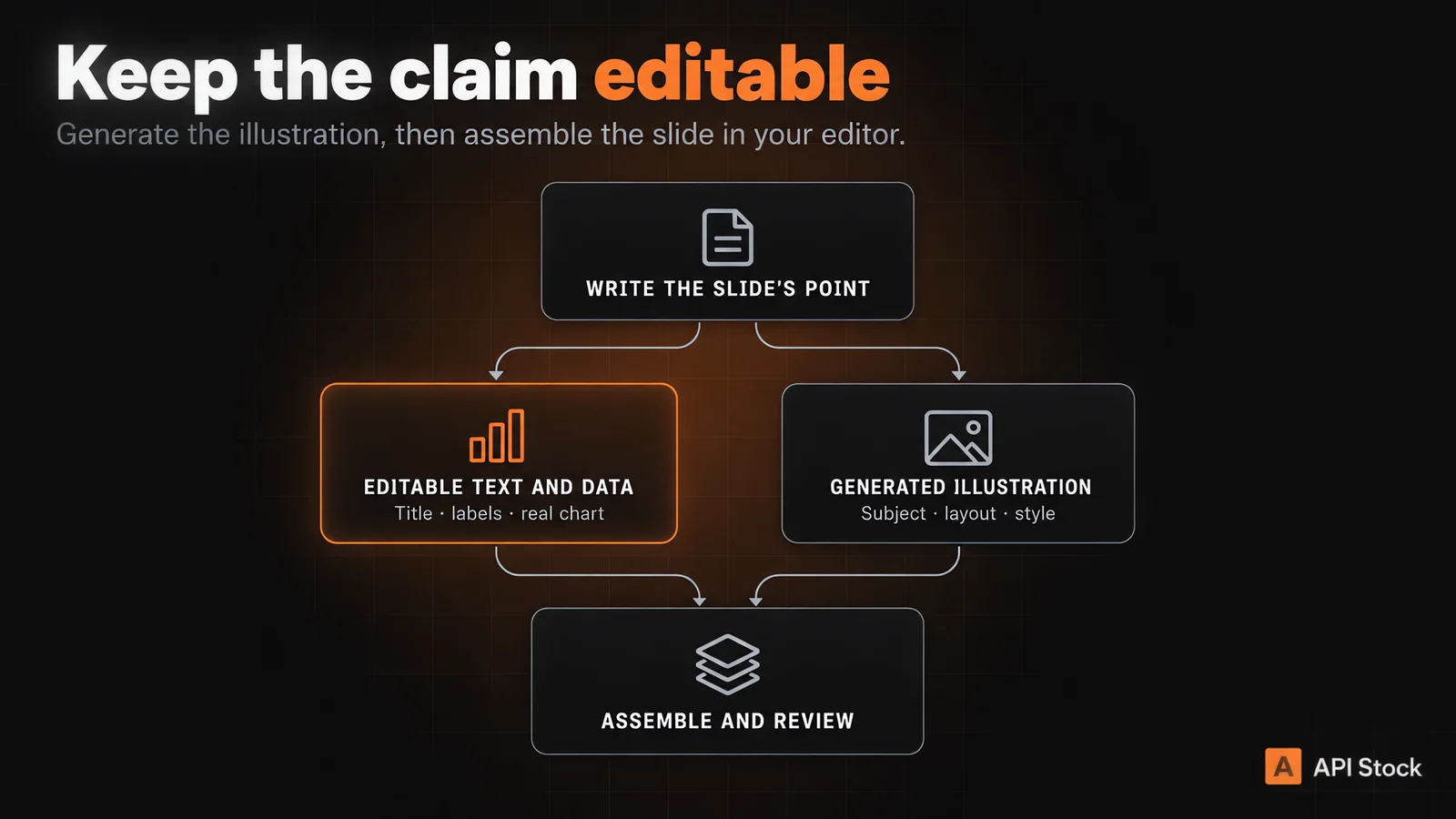
The same rule makes accessibility easier. Add alt text describing what the image explains, rather than simply “AI illustration.” For the warehouse example, “Parcels queue at a narrow packing station” is useful. The slide's native title then supplies the conclusion in readable text.
How much should you budget for the first few slides?
Prices below come from the live API Stock catalog, as of 6 October 2026. Amounts are USD per generation; reference charges are added to the selected resolution price.
| Seedream 5.0 Pro input | Price for one output image |
|---|---|
| Text only, 1K | $0.042 |
| Text only, 2K | $0.084 |
| One reference image, 1K | $0.042 |
| One reference image, 2K | $0.084 |
| Two reference images, 1K | $0.046 |
| Two reference images, 2K | $0.088 |
The first reference image is included. Each reference beyond the first adds the catalog's $0.004 surcharge to that generation. Check the current pricing before generating; these are today's rates, not a fixed future offer.
For a planning example, three slides with two text-only 1K attempts each cost 6 × $0.042 = $0.252. If you also generate one text-only 2K version for each of those slides, add 3 × $0.084 = $0.252, bringing generation spend to $0.504. That is an example allocation of attempts, not a prediction that two attempts will be enough.
Successful images you discard still count toward that budget. More revisions, reference inputs or new compositions add spend. These figures cover image generation only; they exclude the time you spend reviewing and assembling the deck. Start with a single image before committing to the whole set.
What should you check before presenting the result?
Review the illustration inside the actual slide, not just in the download preview. The title needs clear contrast, and the key object needs to remain visible when the slide is viewed small. Crop cautiously: cutting away the bottleneck can remove the entire point of the warehouse picture.
Look for invented signs, malformed equipment and impossible connections. For the gear prompt, the image should communicate inspection, not serve as instructions for assembly. When exact physical relationships matter, use a verified diagram instead.
Check the set together for palette and style drift. If one image is much more detailed than the others, simplify it or use a different approved result. Reusing a style brief helps, but consistent art direction still takes your judgment.
Finally, distinguish illustrative scenes from real evidence in your narration. A generated warehouse should not imply that you photographed your facility or proved a throughput improvement. Keep confidential material out of a reference unless you are authorized to use it.
Your next action is small: open the Seedream Pro playground, paste the warehouse prompt and generate one 16:9, 1K image. Place it beside an editable title and judge whether it makes the slide's point clearer. If you later automate the same task, the image-model reference documents the request fields.
FAQ
Can AI generate an editable PowerPoint presentation here?
This workflow generates an image asset for your deck. Today's Seedream Pro catalog offers image generation and editing, not PPTX export; assemble the slide and its editable text in your presentation editor.
How much does one AI presentation image cost?
Seedream 5.0 Pro costs $0.042 at 1K or $0.084 at 2K through API Stock, as of 6 October 2026. The first reference image is included; add $0.004 for each additional reference image.
Should I generate slide text inside the picture?
Keep headings, labels and numbers as native slide elements when you need to edit them. If you deliberately include words in an image, proofread every character and expect to regenerate the asset to correct it.
Can I use the same visual style across several slides?
Repeat a specific style brief, then consider an approved reference image if the look drifts. Neither approach guarantees identical styling, so review the finished images together before presenting.
Can the model draw charts from my numbers?
It can produce a chart-like picture, but that is not a guarantee of correct values, labels or proportions. Build factual charts from verified data in your slide editor and generate illustrations separately.
- presentations
- images
- seedream
Try it with your own key
Every model mentioned here is live in the API Stock catalog — one API key, one prepaid balance, automatic fallback between providers.
Read next
 Use caseAI product photos for an online store: models, prompts, costHow to turn one phone photo into a full set of product images with AI — which model to use for each shot, prompts that work, and the cost per photo.·9 min read
 Use caseAI music video for your song: models, prompts and costHow to make an AI music video for a song: which model suits which shot, prompts that work, and what three minutes of footage cost, from $2.38.·12 min read
 NewsClaude API pricing after Sonnet 5.5 and Opus 5.5: cost per taskAnthropic released Claude Opus 5.5 and Sonnet 5.5 in late September 2026. What changed, what each Claude model costs per task, and which one to pick.·11 min read