Cas d'usage
AI YouTube thumbnails: prompts, real screenshots and cost
Make an AI YouTube thumbnail backdrop for $0.014, add your real video still and editable title, then check the crop with practical tutorial prompts.
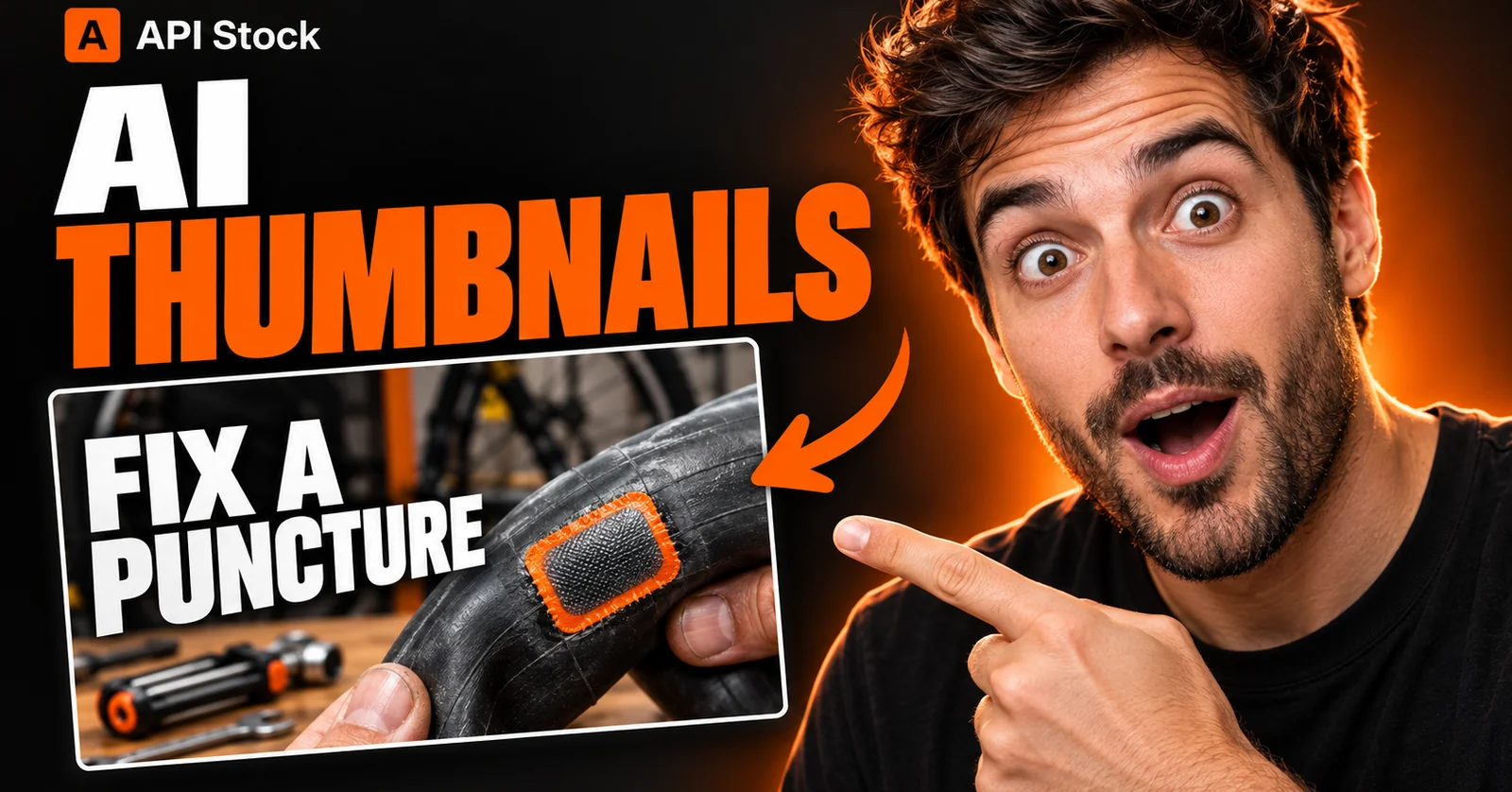
Make a 16:9 thumbnail backdrop with Nano Banana 2.1 for $0.014 per image through API Stock, including the 4K option, as of 16 October 2026. Add your actual video still or screenshot and an editable title in an image editor. For a tutorial, this lets you change the setting while keeping the repair, software screen or finished dish that viewers will actually see in the video.
When does an AI backdrop help a YouTube thumbnail?
Suppose you filmed a bicycle puncture repair. Your close-up clearly shows the patch, but the cluttered garage behind it makes the thumbnail hard to read. You need a quieter setting for that real image, plus a short title such as “Fix a puncture.” You do not need AI to invent a more impressive repair.
Generate the background on its own. Cut out the relevant part of your video still in your editor and place it above the backdrop. Keep the original file so you can compare the patch, tube and tools after resizing. The same approach works for a soldering tutorial or a software walkthrough: use the actual joint or interface as the foreground evidence.
Sometimes the best starting point is your original still with a tighter crop and a solid background. Try that first if it already explains the video. AI is useful when you need a setting or an illustration you cannot get from the footage; it adds review work as well as a generation charge. This workflow makes no promise of a higher click-through rate.
Which model and settings should you use?
Start in the Nano Banana 2.1 playground, choose 16:9 and 4K, and leave reference images empty for the background-only prompts below. The live catalog supports text-to-image generation and reference-image editing, with 1K, 2K and 4K output tiers at the same listed price.
Google's 6 October release notes announced Nano Banana 2.1 for image generation and editing. Here, the reason to try it is practical: it offers the wide framing and resolution options this task needs at a low per-image tariff. That is a starting choice, not a claim that it beats other models at thumbnail design.
If your existing channel artwork uses Seedream 5.0 Pro, you can also use its 16:9 setting for a backdrop. Its current ceiling here is 2K, at $0.084 for a text-only image. That differs from Nano Banana's 4K option; this is not a comparison of equivalent output sizes or measured image quality.
The generated file is a flattened image. It does not contain editable text, cutout layers or a YouTube upload project. Assemble those parts in your image editor; the image-editing guide explains the separate option of changing an image using references.
What prompt makes a useful first backdrop?
For the bicycle repair video, paste this with 16:9, 4K, and no reference image:
Create a photographic background for a bicycle puncture-repair tutorial thumbnail, landscape 16:9. Show a softly defocused charcoal workshop wall with a small rack of bicycle wrenches confined to the far right edge. A warm sidelight falls from the upper right. Keep the left half plain dark charcoal for a title, and the centre and lower-right foreground quiet and empty for a real repair-photo cutout that I will add later. Strong separation between the dark wall and the softly lit tool silhouettes, very little small detail. No people, hands, bicycles, wheels, inner tubes, patches, lettering, logos, numbers, screens or borders. Draw the background only.
The intended result is a quiet workshop setting, not a demonstration of how to mend a tube. Reject it if tools intrude into the title area or the empty foreground becomes a second subject.
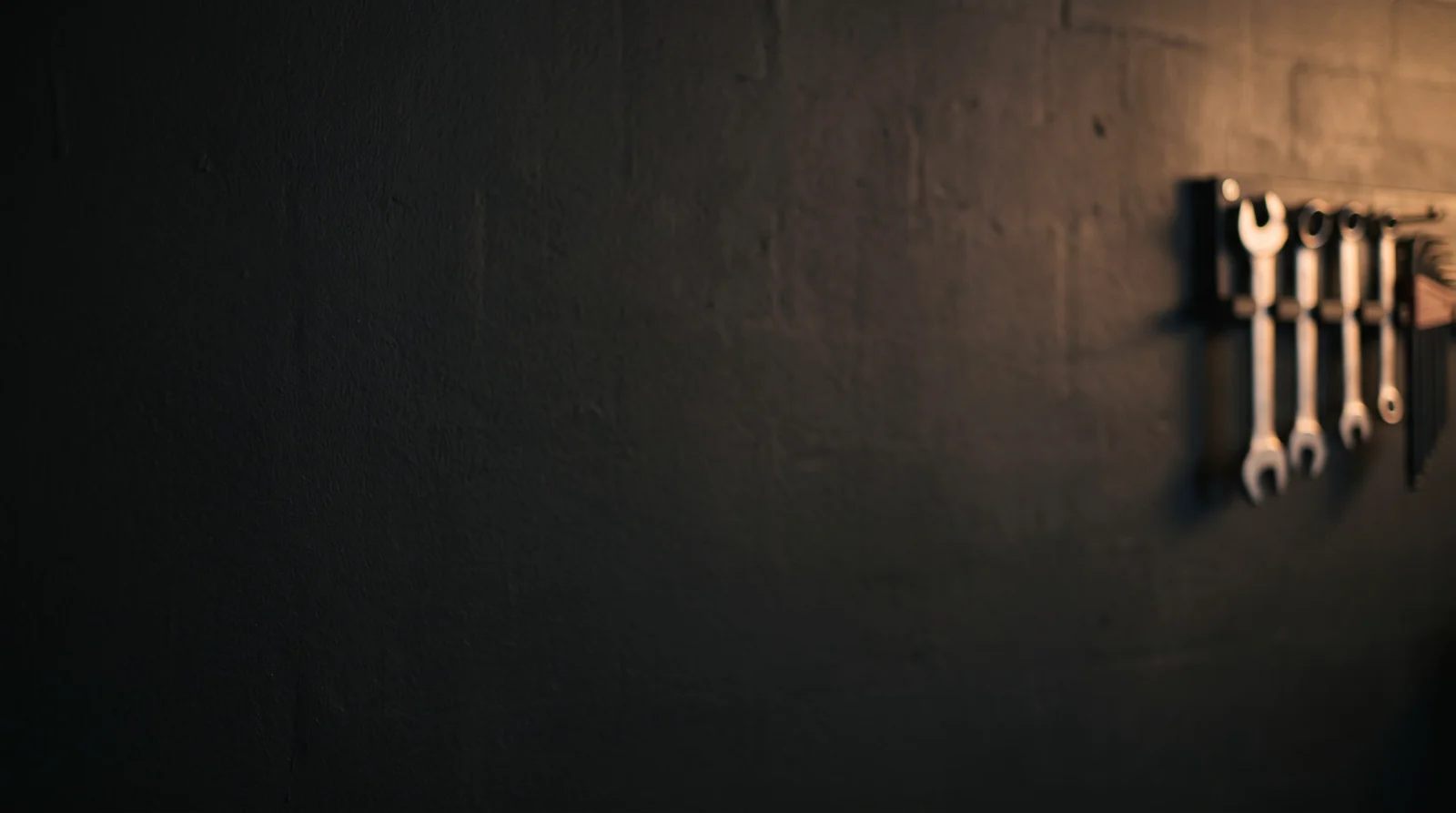
This is one generated backdrop from 16 October 2026, not a finished thumbnail or a model comparison. The web sample is resized to 1600 pixels wide and encoded as WebP, without cropping or retouching. The sample record preserves its prompt, settings and file hashes. The cover and workflow diagram are editorial illustrations, separate from this model sample.
Download the background and open it in your editor. Place your real repair cutout toward the right, keeping the patch large enough to identify. Add “Fix a puncture” as editable type on the quiet left side. If cutting out the tube would hide an important detail, use a cropped rectangular still instead; accuracy matters more than an elaborate silhouette.
How do you adapt the prompt to another tutorial?
Keep the instructions for the empty title area and foreground, then change the setting. These are starting recipes; review each output before using it.
For a soldering video, where your own close-up supplies the actual joint:
Create a landscape 16:9 photographic backdrop for an electronics repair tutorial. An out-of-focus dark workbench recedes into the distance, with a small unbranded soldering-iron stand at the far right edge. Soft cool side lighting and a plain charcoal left half for a title. Leave the centre foreground empty for my real close-up photograph. No circuit boards, solder joints, wires, hands, text, logos, diagrams or screens. The background must not invent the repair result.
For a spreadsheet tutorial, where you will paste the real application screenshot:
Create a minimal landscape 16:9 editorial background for a spreadsheet tutorial thumbnail. Large pale paper shapes recede into a soft blue-grey background, with one restrained amber accent at the far right. Leave a broad, uncluttered central area for my actual application screenshot and a plain dark strip along the left for an editable title. No application windows, tables, cells, charts, letters, numbers, logos or people. Avoid tiny decorations and keep the background visually subordinate to the screenshot I will add.
Crop the real screenshot to the feature the lesson teaches. A full desktop usually makes the interface too small. Keep useful row labels or controls visible, but remove private data in your editor before exporting; a generated approximation of the interface cannot verify what your video demonstrates.
How do you keep the title and evidence intact?
Use three layers in your editor: generated backdrop at the bottom, your real still or screenshot above it, and editable title at the top. If the title needs to change, edit the type. If the background is too busy, simplify or regenerate only that asset.
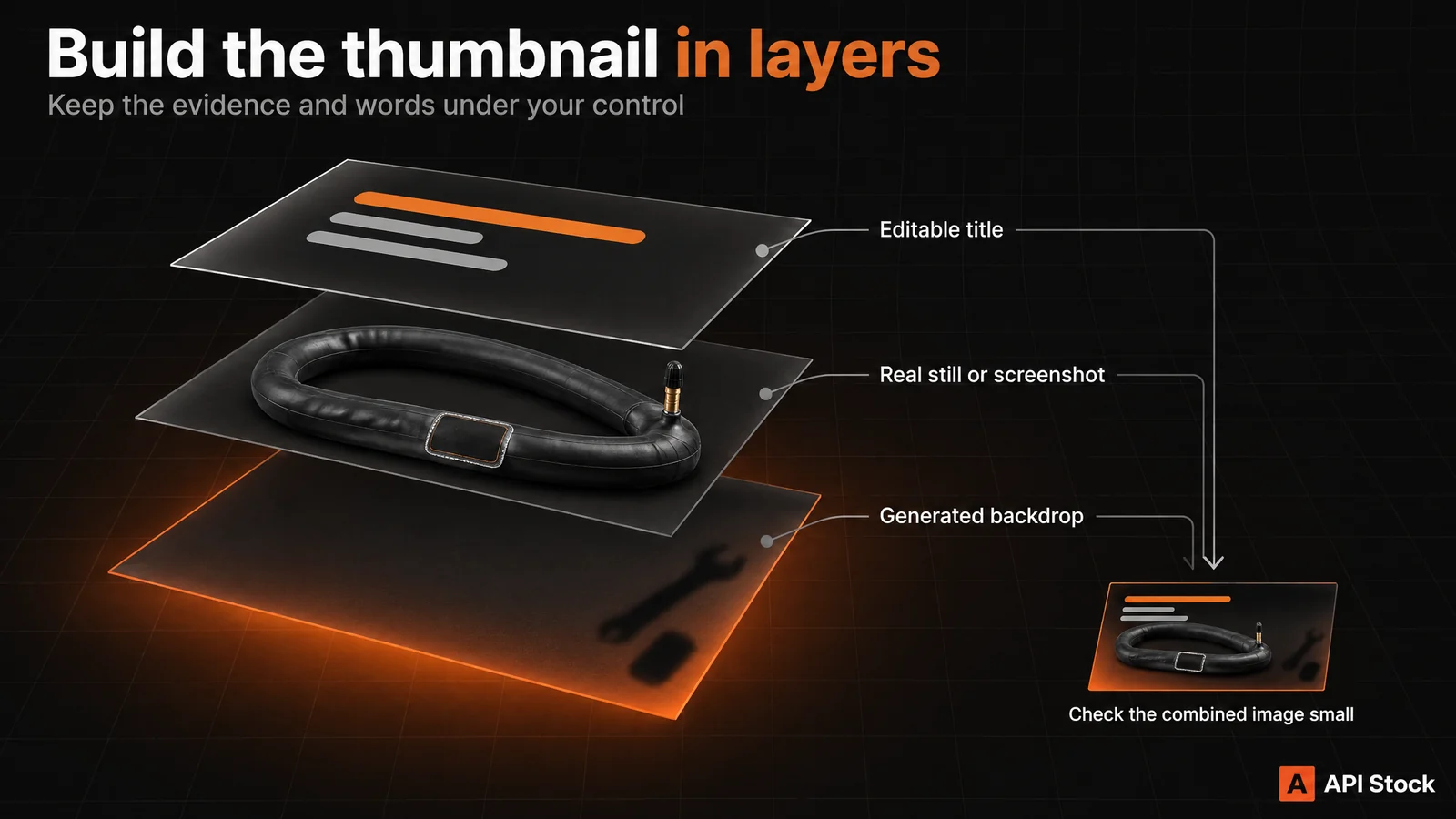
For the repair example, check that the cutout still shows the original patch edges and tube shape. For a software tutorial, inspect the screenshot's labels at the final display size. Enlarging a low-resolution still does not restore missing detail, and asking a model to redraw it may change the evidence.
Shrink the whole composition to roughly the size at which you see thumbnails in your own feed. Can you identify the repair and read the title without zooming? If not, shorten the title, enlarge the useful detail or remove background clutter. This is a design check, not evidence that one version will attract more views.
What does the first thumbnail cost?
Catalog prices checked 16 October 2026. These are USD generation tariffs, not an all-inclusive design service or a minimum top-up amount.
| Background-only request | USD per image |
|---|---|
| Nano Banana 2.1, 16:9, 4K, no references | $0.014 |
| Seedream 5.0 Pro alternative, 16:9, 2K, no references | $0.084 |
One Nano Banana backdrop is 1.4 US cents. An optional budget of three separate background attempts is 3 × $0.014 = $0.042, or 4.2 cents. Three attempts are a spending example, not a prediction of how many you will need; completed images you discard still cost money. These amounts exclude any editor subscription and your assembly time. Check the current pricing and the playground estimate before running a request.
What should you check before uploading?
For a standard horizontal video, YouTube's current thumbnail guidance recommends 3840 × 2160 and 16:9, using JPG or PNG. Its listed upload limits differ by device: under 2 MB for video thumbnails uploaded on mobile, under 50 MB on desktop. Set the final dimensions and compression in your editor rather than assuming the model's “4K” tier guarantees an exact export size.
Check the export in both a large view and a small preview. Look for a clipped title, accidental letters in the backdrop, a halo around the cutout and a repair detail hidden by the crop. Make sure the thumbnail describes what your video actually contains. Custom thumbnail uploads require a verified YouTube account; the linked help page covers uploading them.
For your first attempt, open the Nano Banana 2.1 playground, sign in with a funded balance, choose 16:9 / 4K, and paste the workshop prompt. Generate one backdrop, add your real still and title, then judge the combined thumbnail before paying for another version.
FAQ
Can I make an AI YouTube thumbnail without changing my screenshot?
Yes: generate only the background, then add the original screenshot in your editor. Do not send the screenshot through an image-generation step if you need its pixels and interface labels to remain intact.
How much does one AI thumbnail background cost?
Nano Banana 2.1 lists $0.014 per generation at 1K, 2K or 4K through API Stock, as of 16 October 2026. You still need to assemble and review the finished thumbnail; extra generated attempts add spend.
Should AI draw the thumbnail title too?
Keep the title editable when you expect wording, font or layout changes. You can then correct it in your editor without generating a new image, and check the exact spelling before export.
Does a 4K image guarantee a better thumbnail?
No. Higher resolution does not fix a confusing subject, an unreadable title or an inaccurate screenshot; check the actual file and the finished composition at a small viewing size.
Can I upload the generated background straight to YouTube?
You can export a compatible image, but this recipe leaves space for your actual video still and title. Assemble those first, then check the current upload requirements and preview the result.
- youtube
- thumbnails
- images
Essayez avec votre propre clé
Chaque modèle cité ici est disponible dans le catalogue API Stock — une clé API, un solde prépayé, un basculement automatique entre fournisseurs.
À lire ensuite
 Cas d'usageAI agent: turn a brief into text and imagesUse the new agent to turn a brief and reference files into text and images, choose models, set a spending limit and keep results in projects.·7 min de lecture
 Cas d'usageAI images for presentations: prompts and cost per slideCreate wide slide illustrations with Seedream 5.0 Pro from $0.042 per image, keep text editable, and budget for revisions with practical prompts.·9 min de lecture
 Cas d'usageAI wall paint color preview: your room, three shades and costPreview wall paint colors in your own room photo with Seedream Pro from $0.042 per image, using paint-only prompts and checks before buying real samples.·9 min de lecture